Banned from Technorati

I pinged all of the thripp.com blogs on Technorati using this tool, and now Brilliant Photography has been removed from Technorati. Guess they thought I was trying to game the system (good guess on their part).

Technorati is a blog tracking and ranking service. The main ranking is “authority,” which is based purely on how many blogs link back to you. Since all thripp.com blogs link back here (in the footer of each one), my authority should have shot up from 11 to 71. My blog is still listed on my user page, with a modest authority of 17.

I’m taking the Technorati link out of the Brilliant Photography footer. Our community deserves recognition.

The Irrationality of Apportionment

I remember in 1st grade, doing calculations on how much time I’d spend, say, brushing my teeth each day. If I use five minutes per day on that, that’s 1825 minutes per year, or 30 hours, or a whole school week! My, how much time that was wasting! That’s 2% of my life!

Of course, keeping your teeth clean is very important, a task well worth 2% of your time. But it is when we apply this sort of bean-counting to everything we do, that we run into problems.

When you try to break your day down into minutes and then assign chunks of them to certain projects, like “shoot creative photos for thirty minutes,” it works well on paper, but then in practice it falls flat. You might not even notice it at first. You’ll be busy following the list you made to the letter, taking photos that are decidedly uncreative, thinking you’re making some big accomplishment. Then when you’re waxing the car (or whatever the hip thing is to do nowadays), and you see some great scene like Leafy Sunset 6, you’ll ignore it because it’s not on your list. You’ll miss out on all sorts of opportunities.

You can’t schedule creativity or inspiration. In fact, I’d go so far as to say you can’t schedule your life. Sure, you can make a “schedule” and follow it, but it’s not going to be any better than what you’d do applying yourself without confinement, nor will it wring an ounce of efficiency out of you.

Apportionment’s real value is in building discipline. Once you’ve become disciplined, meaning that you’ve found goals worth focusing on and you’re working toward them, scheduling is just a waste of 2% of your life itself, because you’re so in tune with your work that rigidity shackles your powerful spirit, rather than channeling a weak, uncommitted one (which probably isn’t worth channeling anyway). It’s a lesson that lasts a lifetime, but the lesson itself doesn’t need to take a lifetime. In fact, when I say 2%, it’s often more like 30%. Read stuff like Me and GTD: my worrying addiction to getting organised and Could GTD be harmful? for an example. GTD = Getting Things Done = scheduling to the max. Of course, I’ve been talking more of creative arts rather than the mundane chores apportionment is more often applied to. But I find that apportionment only makes those chores more undesirable; you’re actually less likely to follow through than you would be if it weren’t at the mercy of a rigid schedule.

Further, you have so much untapped creative potential that organizing what you have is going to produce far less than cultivating what you don’t. Work on your strengths, and many other things will fall into place. Hone the talents you already have, rather than the ones you don’t. See the big picture, rather than immersing yourself in the tiny details. This is the difference between someone who keeps a messy desk and gets work done, versus someone who meticulously keeps a clean desk but gets work done. Right now, my desk is covered in piles of school papers, photography accessories, and junk mail needing discarded, yet I’m getting more work done than if I fixed those problems and came back. And the “work” is fun, because I’ve been wanting to write something about this sort of work for a while.

One place you’ll find people often using apportionment is in restricting addictive time-sinks, like emails, blog stats, RSS feeds. You might say, “I will only check these once a day, because they continue pulling me from my work while providing no value.” The immediate problem with this, is that you’re working from a negative perspective rather than a positive one; you’re trying to remove the distractions, rather than let the distractions remove themselves. And they will remove themselves if what you’re focused on is so engrossing that it captures your undivided attention. You’ll see this often, with children playing video or computer games, or younger children making buildings out of blocks. That kind of masterful focus is something we lose when we grow up, instead trying to substitute kludges like demands and scheduling. But if we can get back in the flow to begin with, all of this becomes mere child’s play.

So get back into that flow. If you’re passion isn’t providing that sort of in-built noise filtering, you’re approaching it from the wrong angle or it isn’t right to start with. If you don’t schedule, you don’t have to be afraid of change, and change is much better mastered than feared.

Photo: The Speedy Train

The Speedy Train — a clear train in a blurry world

I was waiting for this quick-moving train to pass, so I took a picture of it, moving the camera with the this car as I exposed the image. It took me 30 tries, but I got this good one. To get a slow shutter speed, I closed way down to F22. Panning is a good technique; you should try it!

Canon Rebel XTi, EFS 18-55mm, 1/13, F22, 18mm, ISO100, 2008-05-13T17:08:44-04, 20080513-210844rxt

Source image. I think there’s some dust on my sensor, but I’m not going to try removing it because it only shows up at small apertures like F22 here. I cloned it out and added some nice colors and contrast. The sky is over-exposed, but I don’t mind it here; seems to match the movement of the train somehow. :sunglasses:

Download the high-res JPEG or download the source image.

This work is licensed under a Creative Commons Attribution 3.0 License. Please credit me as “Photo by Richard Thripp” or something similar.

Everything Old is New Again

I’ve been working on the Thripp.com network non-stop over the past ten days. It’s looking great; I learned a lot and made a lot of progress with features. The next step is to move my blog, Brilliant Photography by Richard X. Thripp, over to it. I’ve done it and you’re reading it now.

The reasons are so I won’t have to maintain two separate WordPress installs, so I’ll have nice threaded comments as on Thripp.com (see comments here for an example), so people can comment while logged in at Thripp.com, so I’ll appear in lists around the site, so I’ll have the nice statistics I’ve set up, so I’m supporting my own product, etc. The challenges are implementing my WordPress install’s features in WordPress MU, while restricting many of those plugins to me, and the new URIs. The compromises are giving up caching, selling prints, Xanga mirroring, and Twitter. It’s all worth it because I’m fighting this battle to the death and I can’t be diving my efforts. I’m sabotaging myself if I don’t move here.

I couldn’t get yak to work on WordPress MU, which I used to sell my prints. It would try directing to the main site, and when I changed that in the code, there were more errors. So I’ve removed it and won’t sell my prints anymore. I only sold two in five months anyway, and this will free me up to not have to enter each product into the produce table, so it’s not all bad.

I couldn’t get WP-Cache or WP Super Cache to work for this blog, though I could’ve tried harder I suppose. So for now, there’s no caching (except the WordPress object cache). The site actually loads faster than the old one, though; I’m getting query times of two seconds instead of the usual five.

I tried mirroring to Xanga and it didn’t work, so my Xanga blog won’t be updated anymore. The Twitter display won’t work either, so it’s outta here.

2008-09-21 Update: Next paragraph is old info; I’ve fixed this since and my URL is richardxthripp.thripp.com. When I switched from richardxthripp.com to thripp.com in 2008 July, I replaced every instance of richardxthripp.com with thripp.com in every post, rewriting history.

I had to switch URI structures, from richardxthripp.richardxthripp.com to richardxthripp.com/richardxthripp, because Thripp.com requires it. I started out doing this because I can’t use vhosts on Thripp.com with my shared hosts, and I might stick with it forever. It’ll be hard to change later, and it does seem more of a community than mini-sites like on deviantART. I set up a rewrite rule with mod_rewrite in the .htaccess file for richardxthripp.thripp.com, so all the old URIs―even ones below the root―redirect here, transparently. So there’s no penalty from Google or for old links. I’ve made the decision; I’ll switch to richardxthripp.thripp.com everywhere but in the backprinting for my printed photos (which have always been with the subdomain) and the watermarks on my images here. It’ll just become traditional for the subdomain to be used there, and it won’t matter because it will always redirect to the right place. :grin:

Nothing can stand in my way―these were all small obstacles. I set up my theme to be custom and different from the main site, like my old site, but with the community modules of Thripp.com (links to recent blog entries, statistics for this blog, which I imported from StatCounter, a link to the community forum, and anything upcoming). Amazingly, almost everything from WordPress transferred to WordPress MU; the posts and comments, post IDs, times, custom fields, tags, categories, pages, comment threading order, etc. I exported the database tables from my old database, renamed them to the WordPress MU format (added my user ID), changed all instances of http://richardxthripp.thripp.com to http://richardxthripp.thripp.com, and imported them here, after getting all my plugins up. WP-Print, PostThumb, Highslide, related posts, category exclusion, Exec-PHP, the contact form, galleries, text control Facebook integration, Wordtube, customized HTML titles, top-level categories, unfiltered HTML… all these transferred without a hitch. Google Search is down till I update my AdSense account, but it’ll be back soon. I have more ads here than on other Thripp.com blogs, but they’re discreetly placed (link and skyscraper in sidebar, banner in footer).

The switch is a success, and I’m back at it. If you’re logged in on Thripp.com, you’re logged in here, and if you post a comment, you’ll automatically be emailed if anyone replies, but only to your comment, by clicking “REPLY TO THIS”. This is good, because when a post gets popular you won’t get irrelevant comments. And all the great stuff I add to Thripp.com will be here too.

It’s a milestone, I say! I have a simple, redesigned header image that says “Brilliant Photography by Richard X. Thripp on Thripp.com” (finally!). I’m reaching for my dreams.

Photo: Reach for the Dream

Reach for the Dream — the red ornament

I found this red ornament on the ground while walking with my camera, and was inspired to set it on a nearby tree branch and reach my hand out as a reflection. The ornament represents your dreams, and the hand represents your continued pursuit of them. Don’t give up!

For this, I brightened the ornament while darkening my fingers, added contrast, a blurry glow effect, and stripped the background down to black and white (selective color).

Canon Rebel XTi, EFS 18-55mm, 1/80, F5.6, 55mm, ISO400, 2008-05-12T19:06:17-04, 20080512-230617rxt

Download the high-res JPEG or download the source image.

This work is licensed under a Creative Commons Attribution 3.0 License. Please credit me as “Photo by Richard Thripp” or something similar.

Thripp.com: the blogging network

I’ve slaved hours away on Thripp.com: the blogging network, and it’s now open in a public beta. :grin: Sign up for your spot now. This is great step forward for social blogging, and you can take advantage of the same great scripts I use to multicast this blog to LiveJournal and Xanga. Read on . . .

I wrote this two days ago, but didn’t expect to get rolling so quickly:

People have been signing up for Thripp.com despite my lack of advertising. I’ll work on the layout and features in July. I can’t get virtual subdomains like I want without upgrading to a virtual private server, which I won’t yet pay for, so you just get a name like thripp.com/foobar instead of foobar.thripp.com (which I know you’d prefer). Sorry for that. If you start blogging for some reason, I added plugins you can activate to multicast to Facebook, LiveJournal, Twitter, and Xanga, like I do (see links in my footer). You’ll have to hand over your passwords, but they’re safe with me.

Today, 2008 May 24, it all starts. I’ve established a WordPress MU powered blogging network here at Thripp.com, complete with an integrated community forum (thanks to bbPress), log-in and blog management links right from the side-bar, the same clean design from Brilliant Photography by Richard X. Thripp, RSS links for each blog right in the footer, and PHP scripts that automatically aggregate the latest blogs, comments, and posts. I’ve gone ahead and done it with subdirectories instead of subdomains, but they are no less memorable, especially with the eye-catching Thripp.com name. 14 people have already gotten started, with fascinating blogs like OpinionSource and Wisconsin Mortgage. You can get started immediately, as this is a public beta.

Thripp.com plugins

I’ve even added some great plugins to enrich your blogging experience, which you can activate under “Plugins” on your dashboard, after you sign up, of course. Advanced Category Excluder lets you leave out any categories you pick from the home page, RSS feeds, or archives, with handy check boxes. Top Level Categories cuts out the “/category” part of your category URIs, keeping your addresses short. WP Grins lets your commenters add emoticons with ease, while Wordbook, Twitter Tools, Xanga Cross Post, and LiveJournal Crossposter (under “Settings”) let you automatically and seamlessly broadcast your blogging to Facebook, Twitter, Xanga, and LiveJournal, complete with links back to your original entries at Thripp.com.

Social commenting is actively encouraged. Gone are the Captchas, registration forms, and moderation queues you see on other networks; here anyone can contribute feedback to any post, immediately and with ease. And if you’re against unmoderated commenting, you can go to “Settings > Discussion” and suit your tastes. This is backed with the excellent spam filtering of Akismet, to stop the Viagra ads in their tracks.

This is beta because it hasn’t all been thoroughly tested, and I’m on shared hosting so I don’t know how far I can push the network. Feel free to make a donation to help keep me out of the red. I’m open to any suggestions or feedback; just add them to the comments on this post.

Cheers. Contribute, blog safely, and share alike. I’ll be reading.

Richard's signature

I’m a Gawker Artist!

2008-07-20 Update: They upgraded the site and broke the old URLs! Here’s my new Gawker Artists page.

I have a page on Gawker Artists now. The photo that got me in is The Rebel, one of my favorite portraits, taken for my now-concluded black and white film class. This means the image will appear occasionally on Lifehacker and other exhibitors. Quite cool. Sarah will be proud, if she checks here. She’s representing an entire movement of non-conformity.

The Rebel: a girl smoking in front of a no-smoking sign

I came up with a great summary of my photographic mission for the page:

I’m an experimental photographer who’s been working in the digital medium for four years. I strive to capture nature in inspiring and unusual ways; while I take pretty pictures, they should always make you think. The same effort goes into my portraits and still life; I photograph whatever I like, and am known for forcing people to pose in crazy ways, or for spending hours setting up arrangements of marbles or ketchup bottles. I’m a believer in contributing to the photography community, so I write a lot of behind-the-scenes details and add tips for my fellow photographers to my website.

If you’re a photographer, isn’t that what your mission should be? To make people think. Anyone can do that. Anyone can do what I do. But does that mean you do? For many of you, no. But I’ll do it for you.

In my spare time over the past few days, I’ve been working on the tech side of the site, instead of posting new material (sorry to my viewers). Some advances:

• My Twitter updates are at the bottom of the first post on each page (Twitter tools, with modifications).
• The ads are inline with posts; see the top-right of the first post on any page, and the link ads after the 2nd and 7th posts. That was tough to figure out. Code like “<?php $postnum = 0; if (have_posts()) : while (have_posts()) : $postnum = $postnum; the_post(); ?>” and “<?php $a = 2; $b = 7; . . . ” went into my WordPress template’s index.php file.
• I switched to Google Custom Search for my search engine (in the side-bar). There are extra ads when you search, which I make money on like the normal ads.
• I made the links below the banner nice, and cleaned up the sidebar, moving stuff to an Index page. The cousin and the father have been demoted to there.
• All thumbnail links use Highslide now, so if you have JavaScript enabled, click one and it will pop up right on the page. You can even flip through photos with the arrow keys. This is a big improvement from a plain link to a JPEG file, and was suggested by the author of Post-Thumb revisited, the plugin I’m using to implement and manage it.
• I added a Contact page, with my info and an inline contact form (SCF2 Contact Form).
• I switched over to WP Super Cache, from WP-Cache. After some battling, I thought I had it so every page, except search, the shopping cart, add to cart, and random gallery, was cached and gzipped, from the second visitor every 24 hours onward. I was very proud of it. It worked for a couple hours, but now only some pages are zipped while other, more important ones get nothing, and I have no idea why. I give up, I’ve spend enough time on this. If it’s not good enough for Steve Pavlina, then it’s not good enough for me. I gzipped the larger CSS and JavaScript files while at it (prototype.js is cut from 125KB to 22KB), and that sticks, fortunately.
Comment previewing is gone. I was revising the preview text, and then the text disappeared and I couldn’t get it to work at all, even writing the settings into the database myself. This isn’t an advance; I just gave up. Maybe it’s outdated, I don’t know, but that’s enough dealing with it. If your comment messes up, post a corrective comment, and I’ll fix it and delete the second one for you.
• Added “overflow: hidden” CSS class to the header (with the six random photos). So if you’re browsing in a window smaller than 1024×768, there is no ugly wrapping to the next line.
• I finally hacked WP-Print to put the URI markers after the hypertext instead of before. So now I can print out wonderful articles like How to Brand Your Prints and they can be read logically. If you print (“Printable View” link below any post), do it in Internet Explorer 7. Firefox is no good at formatting in print. Plus, I was sick of the line breaks in my awfully long Amazon.com affiliate links, so I changed the code so there are no line breaks for URIs, and Firefox deals with this by making all the text really small, while Internet Explorer forces a line break (nice).
• People have been signing up for thripp.com despite my lack of advertising. I’ll work on the layout and features in July. I can’t get virtual subdomains like I want without upgrading to a virtual private server, which I won’t yet pay for, so you just get a name like thripp.com/foobar instead of foobar.thripp.com (which I know you’d prefer). Sorry for that. If you start blogging for some reason, I added plugins you can activate to multicast to Facebook, LiveJournal, Twitter, and Xanga, like I do (see links in my footer). You’ll have to hand over your passwords, but they’re safe with me.

It’s good to know when to give up, as I did with a couple of the issues above. I enjoy taking, editing, and writing about my photos more than this stuff, but somehow I get engrossed in tweaking layouts and settings, which is never the most important thing. It was good this time, for the gallery features mainly, but I’ve had my fix, so I can switch back to the important stuff (publishing photos and writing to inspire others).

I also reached a milestone lately; I’m not in the hole anymore. I’ve made $19 from contextual advertising and $2 from print sales, while I only have $16 invested for hosting (till August when I’ll have to pay almost $10 a month). I’m never going away, even if I have to pay $50 a month and lose money. My art and writing must be accessible to the world, forever.

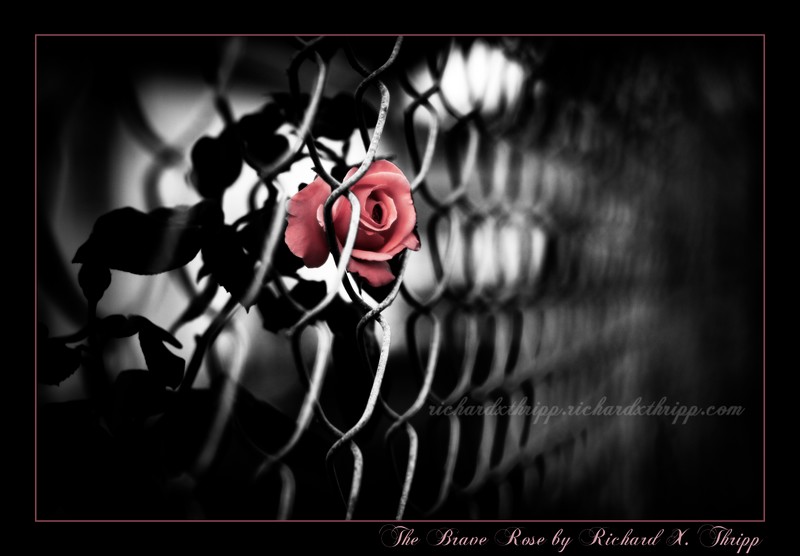
Photo: The Brave Rose

The Brave Rose — a pink rose trapped by a chain-link fence

This is a brave rose, because she’s trapped behind a chain-link fence. I went out for a walk with my camera this morning and spotted this; the rose was right near the fence, so I moved it to be peeking through one of the diamonds. The background was a house and the rest of the fence, but I opened up to F2.5 to blur it almost completely, keeping your focus on the flower.

By only leaving color in the red channel, everything else went black and white. I used subtle coloring on the rose, a glow effect, and added plenty of contrast. To balance the frame and draw the eye toward the center, I darkened everything else with the burn tool, especially toward the edges. This is a good example of how editing can produce a mood, the mood here being one of sadness and reflection, not only from the rose being behind the fence, but from the dark feel I added, and by alienating the subject from its surroundings with selective coloring.

Canon Rebel XTi, EF 50mm 1:1.4, 1/100, F2.5, 50mm, ISO100, 2008-05-17T06:47:05-04, 20080517-104705rxt

Download the high-res JPEG or download the source image.

This work is licensed under a Creative Commons Attribution 3.0 License. Please credit me as “Photo by Richard Thripp” or something similar.

How to Brand Your Prints

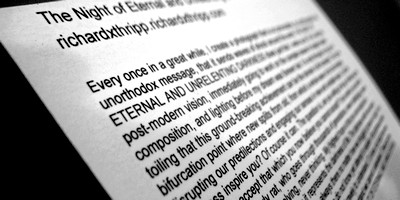
the back of a photo, annotated with laser printing

Photos in print are much harder to brand than photos on your website. If your printing in any great quantity, the tedious process of writing out your name, website, and other pertinent information on the flip side becomes insurmountable. Secondly, most photographic papers have a resin-coated backing, which stubbornly refuses any water-based inks. My methods in this article are aimed toward unframed 4*6 prints, as that’s what I deal with myself, but they can be easily applied to other formats. In fact, the fundamentals of permanence at the end are essential to any print medium.

Whether your printing photos for your friends, family, art, or business, it is doubtless that any copies floating about can make convincing advertisements. Your very livelihood is at stake; what can you do to make sure that everyone knows that you are the creator of those photographic masterpieces? Luckily, you do have options.

1. Put your name right on the front of the print, straight from the digital source files. This is an easy way to demarcate your work; you don’t have to deal with any hand writing or messy backprinting. Unfortunately, it’s a bit distracting, and anything more than the title and your name is pushing it; include your website and the text will get more attention than the photo. Plus, if you’re going to put the info anywhere, it’ll have to be at the edge of the print, perhaps in a border surrounding the image. You’re going to have to deal with the bleed edge, and it’s a pain because what looks fine on the screen will often get cut off in a borderless print. This becomes especially important if you’re out-sourcing to a lab, as they often crop tightly, and you have less control than with home printing. Nonetheless, as long as you use a big enough border, this is effective, especially if you’re drop-shipping your prints and can’t intercept them to label the backs elegantly. I’m using this very technique for The Freedom Project, my free print offering; the image area is 5×3.34 instead of 6×4, and the extra space is used for a border, with the title and my name at the bottom.

2. Label the back of the print by hand. This is fine in low volume, and provides a connection to your audience. There are downsides though: it’s slow and eats away at your time, your handwriting won’t be as readable as printed type, and getting the ink to stay without damaging the print is a challenge. Don’t even think of using a ballpoint pen; the point will leave a noticeable impression on the front side, and if the ink is water-based, it’s not going to adhere anyway. Your best choice is a pigment-based permanent marker; a Sharpie or equivalent. Ultra fine point is good, as long as you don’t press down too hard.

3. Rely on your lab to label your prints. Usually, they print a tiny dot-matrix label, including the file name or custom text. Winkflash prints the file name, and SmugMug offers custom text, for example. Both are limited to about forty characters—hardly enough space for your name and website. This post by dogwood at the Digital Grin forum sums it up:

Just my two cents, the backprinting option is a GREAT idea… though in reality, it does look pretty poor. The printing is tiny, there are frequent errors, you can’t use symbols (including the copyright symbol), and it looks like one of those 1980’s dot matrix printers is used to create the text.

The provided backprinting is a step up from nothing, though.

4. Label the back of the print with a rubber stamp. You’ll run into the same problem as above: dye or water based inks will never dry. Your only choice is pigment-based or permanent ink, which are less common and more expensive. It’s hard to clean either off your stamps, and the former has the con of not being permanent. Read more here: Ink Pad Basics. Look into alcohol based inks if you pick this route, as they will stick to even plastic.

5. Label the back of the print with an ink-jet printer. This won’t work at all. Trust me, I’ve tried it. It’ll come out looking fine, but as soon as you touch the ink, it smears all over the place, even if it’s sat out for two weeks. It’s fine if you’re using double-sided paper, but if you are, you don’t need to read this anyway.

6. Label the back of the print with a laser printer. Now we’re getting somewhere. This is what I do for all my 4*6 prints using a Lexmark E450dn; the opening image is an example. This won’t work with many printers, and has some problems. For starters, many laser printers get too hot and will damage the finish or curl your prints permanently. Don’t expect any specs on this from the manufacturer. You run the risk that the plastic in the print will melt and get caught up on the rollers, immobilizing your expensive machine. This happens more often with inkjet photo paper, which isn’t designed to stand up to heat. And many printers don’t like to label 4*6’s; you’ll have trouble setting up the tray, and getting the print to be centered. The upside is if it works, you have a cheap and fast way to batch label prints, even with lengthy annotations that fill up the whole back side, like in my example image. The “ink” will always stick, because it’s in fact toner, ground up particles of plastic, which are burned to the paper with a fuser as hot as 400 degrees (Fahrenheit). I lose about one in two-hundred prints, because the printer messes up and crinkles them. But I can run a stack of seventy-five through in eight minutes, usually with no intervention, provided their all the same photo.

7. Use water-based ink, but cover it with a piece of scotch tape. The ink smears a bit under the tape, but remains legible. This looks really ugly. It works, but leaves a bad impression, so I don’t recommend it. Another downside is that the tape may peel with time or under wear.

8. Use printer labels. Get a pack of 2000 clear inkjet labels (just over a cent each), then print on them with your inkjet printer. The ink will absorb into the label, and then you can just stick the label on your print. This is a good method because it overcomes the problems of the prints’ non-absorbent surface, but applying the labels is more time consuming than printing directly as in method five, stick-on labels don’t look as good, and they’re expensive. Plus, they can be easily peeled off.

9. Give up and do nothing. No, no, you can’t do this. Moving on . . .

Now that you know how to do it, the next question is what to do. By do, I mean write. Pick facts to stand the test of time. Your name is a good start, but unless it’s terribly unique (like mine), you’ll want a bit more information so people can track you down—not to stalk you, but so they can buy more of your work and commission you to take photos of their children and pets. Put your website on the back, but be wary that a URI like http://www.flickr.com/photos/richardxthripp/ doesn’t inspire much confidence. It isn’t good for you either—what if Flickr bans you for some unjust reason, or you get tired of the limitations and want to move out on your own? All the photos you’ve labeled and distributed are going to be out of date. Fortunately, you can have the best of both worlds; register your permanent domain for about $10 a year, then set it up to forward to your Flickr account (or SmugMug, or deviantART, or whatever). Any good registrar will offer forwarding, and then if you change photo services or start using your own domain, you can change the settings. All your photos and t-shirts you’ve printed will never go out-of-date, because they’ll be forwarded to the right place as you so smartly set up.

Regarding permanence of information, the same applies to phone numbers. While your number may be better relegated to a business card than to the backprinting on a print, either way, get one you can stick with. You can’t count on your parents or roommates to forever take your calls, but a good solution, if you don’t mind a new number, is GrandCentral, a free proxy phone service with voice mail, multicast forwarding, and other perks. I use this for the 510-936-2417 phone number I bandy about on my contact page and elsewhere, yet it forwards to both my secret home and cell phone numbers, simultaneously. When I change numbers, I just update the record at the website, and start receiving calls at the new number, even though I’m still using 510-936-2417. Since Google has acquired the service, it should remain free and reliable for a long time. You have to sign up for a waiting list, but when I did it, I was chosen in about a day.

So now that you have your shiny, permanent web address and phone number, what else do your fans have to know about their beloved artist? It’s debated, but I feel that every great photo deserves an equally wonderful title, and if there’s anything your print viewers should know, it’s the title of the gem which has entered their collection. Flaunt it proudly on the label. It’s the first thing on mine. An index number is a good idea, so if you’re called for reprints, you can look up the photo by number right away. If each of your photos has a unique title like with mine, I suggest skipping it, however.

Now, what not to write. Unless it’s photo-journalism, don’t write the date. Photos like my Raindrops are timeless, but if I announce that it is from two years ago, people will think it’s old and not valuable, especially when I want to pass it off, implicitly, as recent work. Put the name of your photography studio if you run it, but not if you’re an employee, unless your employer requires it. I have an aversion to “copyright” and “all rights reserved” for backprinting. It’s a waste of ink, your work is copyrighted regardless in the U.S.A., and it won’t deter any thieves. Going with this theme, don’t watermark prints, ever. Even if you’re giving them out. It’s bad karma. Besides, a scanned print won’t be near the quality of your master files.

Do write some notes, if you’re labeling with an efficient laser printer. I do this on a lot of my pieces now, and my friends enjoy reading of the method behind my creative madness. Sign a few prints with a blue Sharpie, so it’s not mistaken for a facsimile signature; they might be collectors’ items someday. Put your website down, but don’t think of detailing your pricing or photography services; people can contact you if they’re interested, and that information is perishable anyway. Whatever you print, make sure it’s big and readable. I use Arial, size 14 for my branding, size permitting, so even blurry-visioned folks can read the title without glasses.

I do hope I’ve helped you in tackling this issue. Marking your prints is a major step toward developing your personal photographic brand, and the virtues of the printed format continue to complement Internet publication. May your followers never wonder who you are, and may your contributions shine through the photography community.

Dynamic Galleries and Random Images for WordPress Photoblogs

I was looking for ways to optimize my website . . . to make it quicker and easier for me to maintain and update, while being fun to browse for my visitors. The problem with the old gallery and random photos at the top of each page, was that I had to make the thumbnails and update the page and database for both (I was using the this randomizer plugin for WordPress), each time I added a photo. It was good because I’d crop, scale down, and sharpen each image to look its best, but the extra work was too much. I found the Post Thumb plugin is the perfect solution. I installed it, set it to make 100×70 thumbnails, and then added this code to my blog header:

<?php the_random_thumb(“link=p&limit=5&category=8”); >

That makes it show five random photos from the category for my photos, linking to the page for each instead of the file. The great thing here is that the thumbnail folder and accompanying MySQL table is updated automatically, so photos are added to the pool as soon as I publish them. A random photos section is good for the casual browser, who just looks at what catches his eye.

Next, I wanted to create a dynamic gallery and random image page. I added the Exec-PHP plugin so I could use PHP code in pages and posts, but found that WordPress inserts a line break between each thumbnail, against my wishes. For that, I added this modified version of Text Control by Jeff Minard, then setting it to not auto-format the gallery and random pages.

The code for page one of the gallery is:

<?php the_recent_thumbs(“subfolder=g&width=200&height=160&link=p&limit=60&category=8”); ?>

and for page two:

<?php the_recent_thumbs(“subfolder=g&width=200&height=160&link=p&limit=60&offset=60&category=8”); ?>

The parameters with all the ampersands tell the script to make 200×160 thumbnails instead of the default, to save them in a subfolder named “g” (for gallery of course), to link to the posts the photos are in, to display sixty thumbnails per page from category 8 (my photos), and, on the second, “offset=60” means to start with photo #61 (computer programming languages count from zero). When I get over 120 photos (I’m at 83 now), I’ll have to make page three manually. I don’t mind that, since mine is a low-volume photo-blog focusing on quality, so I’ll only need to make a new page every few months. I’m stoked enough by what can be done without my help.

Next up was the random page:

<?php the_random_thumb(“subfolder=g&width=200&height=160&link=p&limit=24&category=8”); ?>

This is almost the same as the first gallery page; the function is the_random_thumb instead of the_recent_thumbs, and I reduced the number of photos from 60 to 24. It worked great, except the random photos would not be refreshed on each visit to the page. The problem was the caching module I use, WP-Cache, so I solved it by adding “/random” to the list of rejected URIs in its settings. Unfortunately, this makes the random page the most computationally expensive on the site, which is especially a concern because I’m on cheap, shared hosting. I’ll keep an eye on it, and if it gets too popular and things start crashing, I’ll reduce the number of images or pull the plug.

As if this wasn’t enough, I had another feature to add: a link to a random photo for sale in my expensive shop (powered by YAK), at the top of the sidebar on each page. After doing the above, this was easy:

<?php the_random_thumb(“subfolder=s&width=128&height=86&link=p&category=389”); ?>

This time, there is just one thumbnail per page, so “limit=” is omitted (it defaults to 1). The subfolder for the thumbnails is “s” for shop; you can make the subfolder’s name longer, but I’m keeping it short for simplicity. The width and height are different to match the size of my sidebar , and the category is #389, to show only posts from my shop for framed prints. I’m letting WP-Cache in place, but it clears every day (a.k.a. 86400 seconds), so each page will show a different print each day.

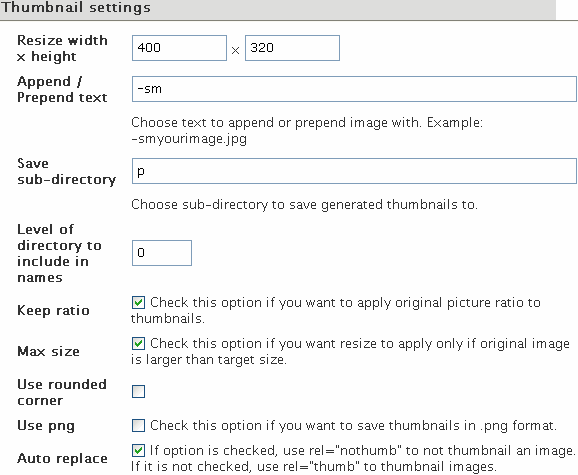
Is that enough? No, Post Thumb isn’t done helping me. I normally create the thumbnails and HTML code showing them for each photo, but the plugin can take care of that automagically. I made these choices in the settings:

Alakhnor's Post Thumb auto-thumbnail settings

For the screen capture of the settings you see above, I added the rel=”nothumb” tag after the alt text, because it’s 475 pixels wide, so resizing to 400 isn’t needed. But I’ll be letting it auto-thumbnail most of the time. For Sunrays 3, for example, I would normally make a thumbnail, upload it, and write this HTML for the post:

<a href=”http://thripp.com/files/photos/sunrays-3.jpg” title=”Sunrays 3 — orange rays of sunshine pierce black clouds”><img src=”http://thripp.com/files/photos/sunrays-3-sm.jpg” alt=”Sunrays 3 — orange rays of sunshine pierce black clouds” /></a>

But now, I write this:

<img src=”http://thripp.com/files/photos/sunrays-3.jpg” alt=”Sunrays 3 — orange rays of sunshine pierce black clouds” />

. . . and the plugin resizes and saves the photo, uses the new version as the image, links to the full-size version, and specifies my alt text as the hover title, while showing the abbreviated code when I return to edit the post. And this is all done before sending it off to LiveJournal and Xanga (with LiveJournal Crossposter and Xanga Crosspost). Very cool, and better than what WordPress does out of the box.

Post Thumb finds the first image in a post, then using a thumbnail of it to represent that post. Since I only put one photo to an entry, it’s perfect in my case. I have both the convenience of a photo-blog and the versatility of a text blog. I can write text articles like this one right alongside my photos, both show up to my RSS and email subscribers, and I can include lengthy descriptions for my photos, while WordPress and Post Thumb do the heavy lifting to compile a detailed blog and minimalist gallery. This is more than can be said for WordPress 2.5’s built-in galleries, or the add-on solutions. It is much preferable for teaching galleries like my own, with lots of text and information accompanying images, than for people who just want to put up scads of photos with no details. I use Gallery2 for the scads of photos (my gallery is private). WordPress and Post Thumb bridge the gap.

While I was at it, I switched default fonts on the site from Lucide Grande to Arial, because it’s included with Windows, and renders better at small sizes in Firefox. I also changed the banner from olive green to a powerful black. The last step was to add links to the new gallery pages below the banner. Changes are good.